If you love quick answers and hate complex spreadsheets, RankMyCalc is your new best friend. In this guide, I’ll walk you through step-by-step RankMyCalc calculator instructions so you can get accurate results every time—whether you’re converting units, planning a budget, or checking exam scores.
1. Getting Started With RankMyCalc
Before you dive into any specific tool, it helps to understand how the site is structured.
a) Pick the right calculator category
On the RankMyCalc homepage you’ll usually see calculators grouped by purpose, for example:
- Finance calculators (interest, SIP, mortgage, savings, profit percentage, etc.)
- Math & statistics calculators (mean, median, mode, decimal to fraction, Pythagorean theorem)
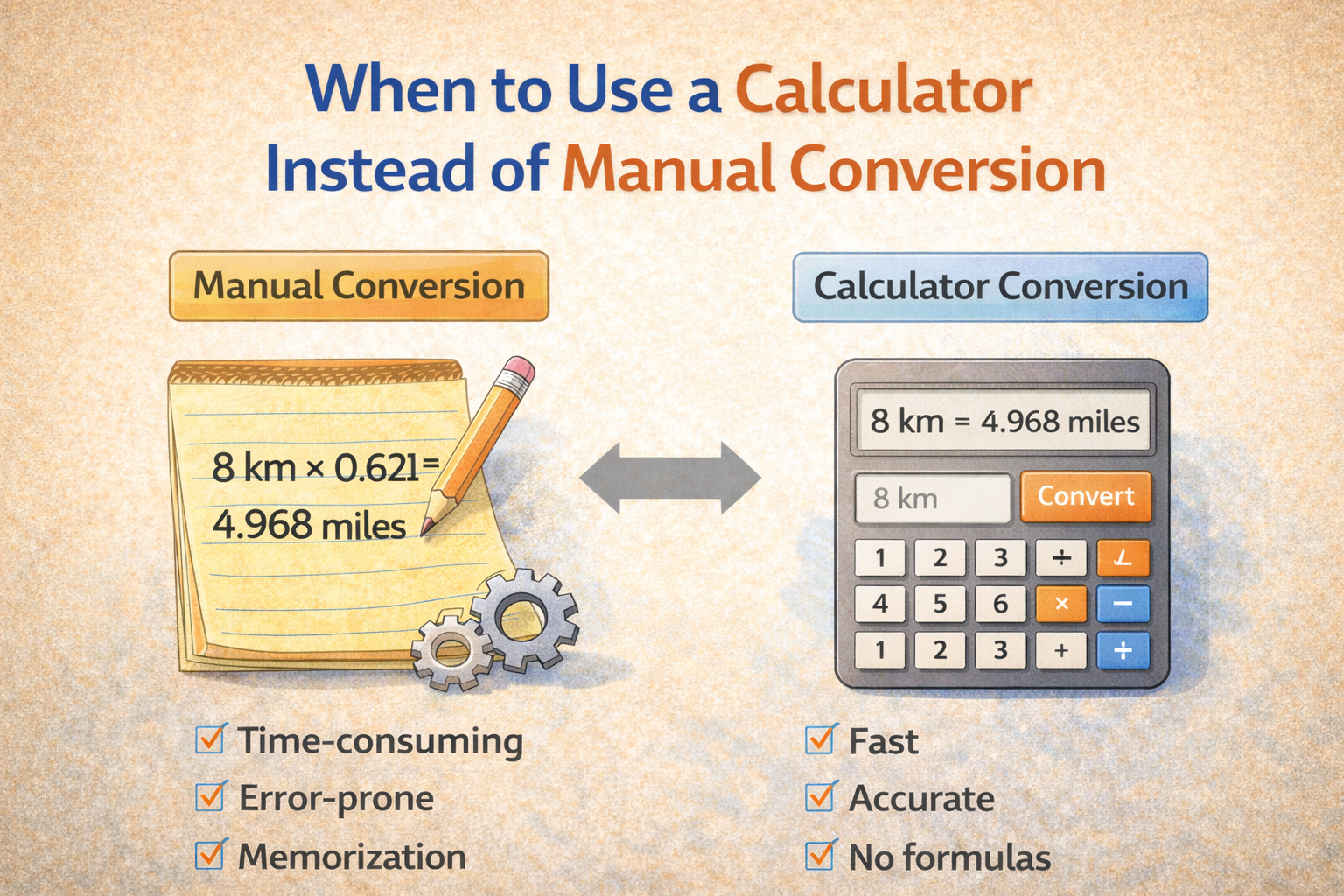
- Unit converters (feet & inches to cm, km/h to mph, gallons to liters, lbs to kg)
- Everyday tools (tip calculator, race pace calculator, rounding tools, file converters, and more)
Click the category that matches what you want to do. This keeps you from wasting time on the wrong tool.
b) Open the dedicated calculator page
Each calculator has its own page with:
- A short description of what the calculator does
- One or more input fields
- A “Calculate” or “Convert” button
- A results area that updates instantly after you click the button
2. Understanding the Layout of RankMyCalc Calculators
Most RankMyCalc tools follow the same clean layout so you don’t have to learn a new system every time.
- Title & Short Intro
At the top, you’ll see the calculator’s name and a brief description of when to use it. - Input Section
This is where you type your numbers—like feet and inches, loan amount, interest rate, or speed. - Action Button
A clear “Calculate” or “Convert” button runs the calculation for you. - Result Box
Your answer appears instantly in a highlighted output area so you can’t miss it. - How-to-use text & FAQs
Below the tool, you’ll often find simple examples, formulas, and FAQs if you want more detail.
Once you understand this pattern, you can follow the same step-by-step RankMyCalc calculator instructions across almost every tool on the site.
3. Step-by-Step Example: Using a Unit Converter (Feet & Inches to CM)
Let’s walk through a real example so you can see the process in action.
Step 1: Open the calculator
Navigate to the Feet & Inches to CM page from the unit converters section.
Step 2: Enter your measurements
You’ll see two input boxes:
- Feet – whole number (e.g.,
5) - Inches – can be whole or decimal (e.g.,
7or7.5)
Type your values in the boxes. If you only know inches, you can leave feet at 0 and use just the inches field.
Step 3: Click “Convert to CM”
Hit the Convert button. Behind the scenes, the calculator uses this formula:
Total inches = (feet × 12) + inches
Centimeters = total inches × 2.54
Step 4: Read your results
The result box will show:
- Your height in centimeters
- A clean, normalized feet & inches format (e.g.,
5 feet & 7 inches)
You can now use this value for clothing size charts, medical forms, or any metric-based requirement.
4. Step-by-Step Example: Using a Finance Calculator
Now let’s take a quick look at how financial tools work—like a mortgage payoff or interest-only loan calculator.
Step 1: Gather your numbers
Before opening the tool, make sure you know:
- Loan amount
- Interest rate
- Loan term (years or months)
- Payment frequency (monthly, annually, etc., if required)
Step 2: Fill in each field carefully
For a typical RankMyCalc finance tool, you’ll see inputs like:
- Principal / Loan Amount – the amount you borrowed
- Interest Rate (%) – yearly interest rate
- Term – number of years or months
- Extra Payment (optional) – extra amount you want to pay to finish faster
Enter your numbers as they appear in your loan documents.
Step 3: Click “Calculate”
The calculator processes your data using built-in formulas—for example, the standard loan amortization formula for EMIs or interest calculations.
Step 4: Review the output
You’ll usually get:
- Estimated monthly payment
- Total interest paid over the term
- Total cost of the loan
- In some tools, a payoff timeline if you add extra payments
These instant answers help you compare scenarios and make better money decisions without doing any math by hand.
5. Step-by-Step Example: Using a Grade or Exam Calculator
Many students use RankMyCalc to check what score they need on a final exam to hit a target grade.
Step 1: Go to the Final Exam Calculator
Open the Final Exam Calculator page from the education or study tools section.
Step 2: Enter your current grade details
You’ll see fields such as:
- Current grade / coursework average (e.g., 72%)
- Weight of the final exam (e.g., 40% of the final mark)
- Target course grade (e.g., 80%)
Step 3: Click “Calculate”
The calculator uses a formula similar to:
Final grade = (current grade × coursework weight) + (exam score × exam weight)
It then solves backward to show what exam score you need to reach the target grade.
Step 4: Use the result to plan your study
You’ll clearly see something like:
“You need 78% on the final exam to earn an 80% overall.”
This makes it easier to set realistic goals and focus your study time.
6. Best Practices for Accurate Results
To make the most of these step-by-step RankMyCalc calculator instructions, keep these tips in mind:
- Double-check units
Make sure you’re entering values in the correct units (e.g., years vs months, feet vs inches, km/h vs mph). - Avoid mixing commas and periods
For decimals, use a period (.). Don’t type commas inside numbers (e.g., type1000instead of1,000). - Use positive values only
Most calculators assume positive numbers. Negative values can create invalid or confusing results. - Read the explanation section
Many tools include example calculations and plain-language explanations. If you’re unsure, scroll down and read those. - Save or screenshot your results
If you want to refer back later, take a screenshot or note down key numbers before refreshing the page.
7. Why Use RankMyCalc Instead of Doing the Math Yourself?
- Speed – Complex formulas are done in milliseconds.
- Accuracy – No risk of messing up a formula in Excel or on paper.
- Simplicity – Clean layout, clear inputs, and straightforward buttons.
- Variety – You get financial, math, unit conversion, and everyday calculators all in one place.
Whether you’re a student, professional, or just solving everyday math, following these step-by-step RankMyCalc calculator instructions will give you quick, reliable answers with almost no learning curve.
FAQ: Step-by-Step RankMyCalc Calculator Instructions
1. Do I need to create an account to use RankMyCalc?
No. You can use all the calculators directly in your browser without registering or logging in.
2. Are RankMyCalc results 100% accurate?
The tools use standard, widely accepted formulas. As long as you enter correct inputs and units, the results are highly accurate for everyday use.
3. Can I use RankMyCalc calculators on mobile?
Yes. The calculators are designed to work on phones, tablets, and desktops, so you can calculate on the go.
4. What if I don’t understand a field or label?
Scroll down to the “How to use” or FAQ section on the calculator page. Most tools include clear explanations and example calculations.
5. Can I rely on RankMyCalc for financial decisions?
RankMyCalc is great for estimates, planning, and comparisons. For major financial decisions, it’s still a good idea to discuss the results with a financial professional.